The ZITADEL Quick Start Guide
Learn how to integrate OIDC PKCE authentication in React using ZITADEL in under 5 minutes.
This sample app implements the OIDC PKCE flow for secure authentication.
- Login: Exchanges a code challenge for an access token via ZITADEL.
- Authorize: Uses the token to retrieve profile data from the userinfo endpoint.
- Logout: Clears the local session and revokes the token.
Get Started with ZITADEL Cloud
Set up your ZITADEL account and organization to begin managing identities for your applications.
1. Create your Account and Organization
You first need access to the ZITADEL Cloud Customer Portal. This is the administrative hub for managing your billing, teams, and instances.
- Sign Up: Go to zitadel.com and select Sign Up.
- Onboarding: Follow the prompts to verify your email and set up your Portal Team.
- Tip: We recommend using Passkeys for a secure, passwordless login experience.
- Access: Once authenticated, you will be redirected to the Customer Portal dashboard.

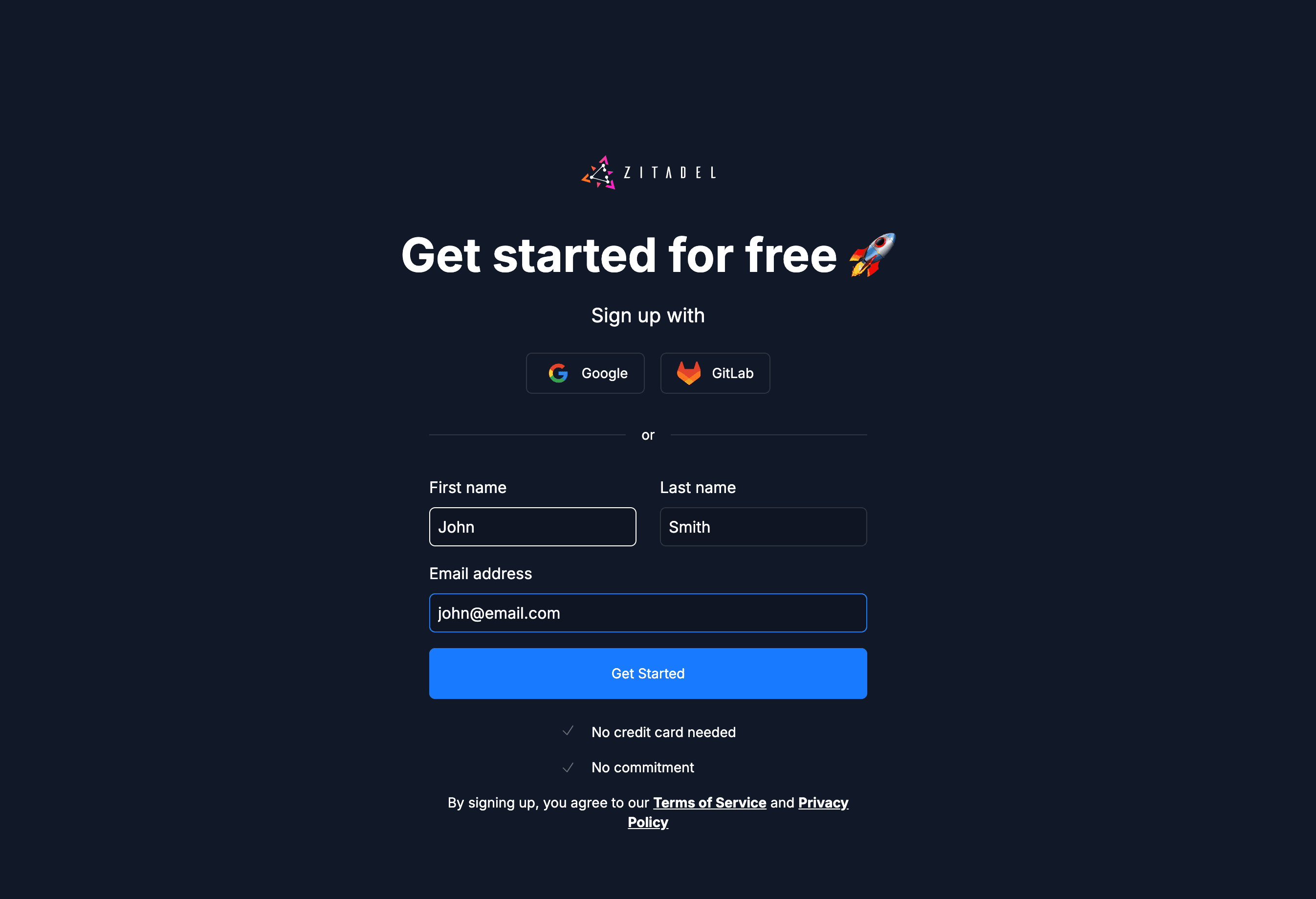
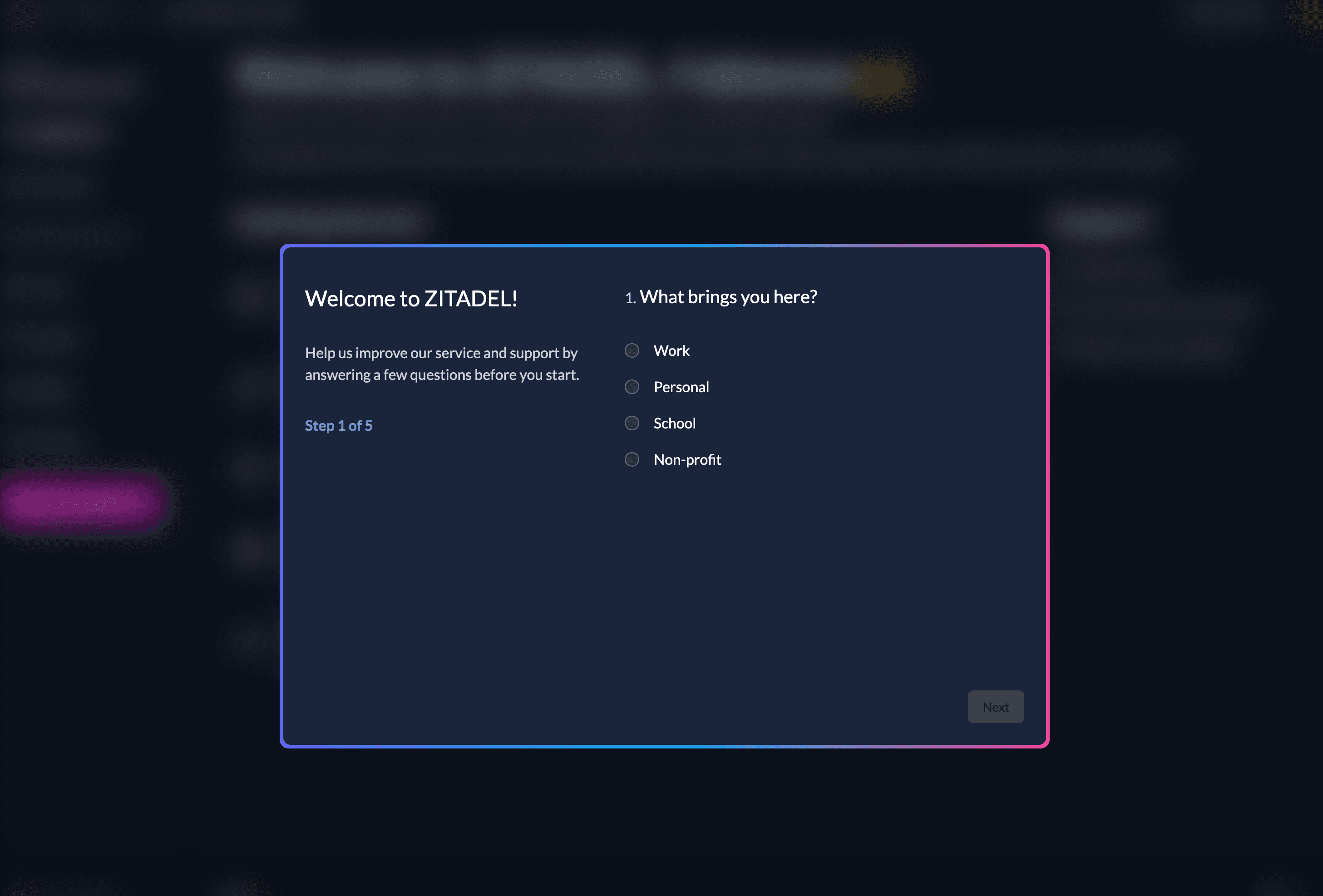
2. Quick Onboarding
Complete the brief onboarding questions.
This data helps us prioritize the development of new features, SDKs, and integrations that matter most to our community.
3. Create your ZITADEL instance
An Instance is a fully isolated identity environment with its own users, policies, and data. Most developers use separate instances to isolate Development, Test, and Production workflows.
Follow these steps to deploy your first instance:
- Start: Click Create Instance on your dashboard.
- Identity: Provide an Instance Name (e.g., dev-environment). This will be used to generate your default domain (e.g., dev-environment-xxxx.zitadel.cloud).
- Locality: Select your Region.
- Note: Choosing a region close to your users minimizes latency and helps with data residency compliance.
- Admin Setup: Create your Instance Administrator. This user has "root" permissions to manage all organizations, policies, and settings within this specific instance.
- Deploy: Review your configuration and click Create Instance.
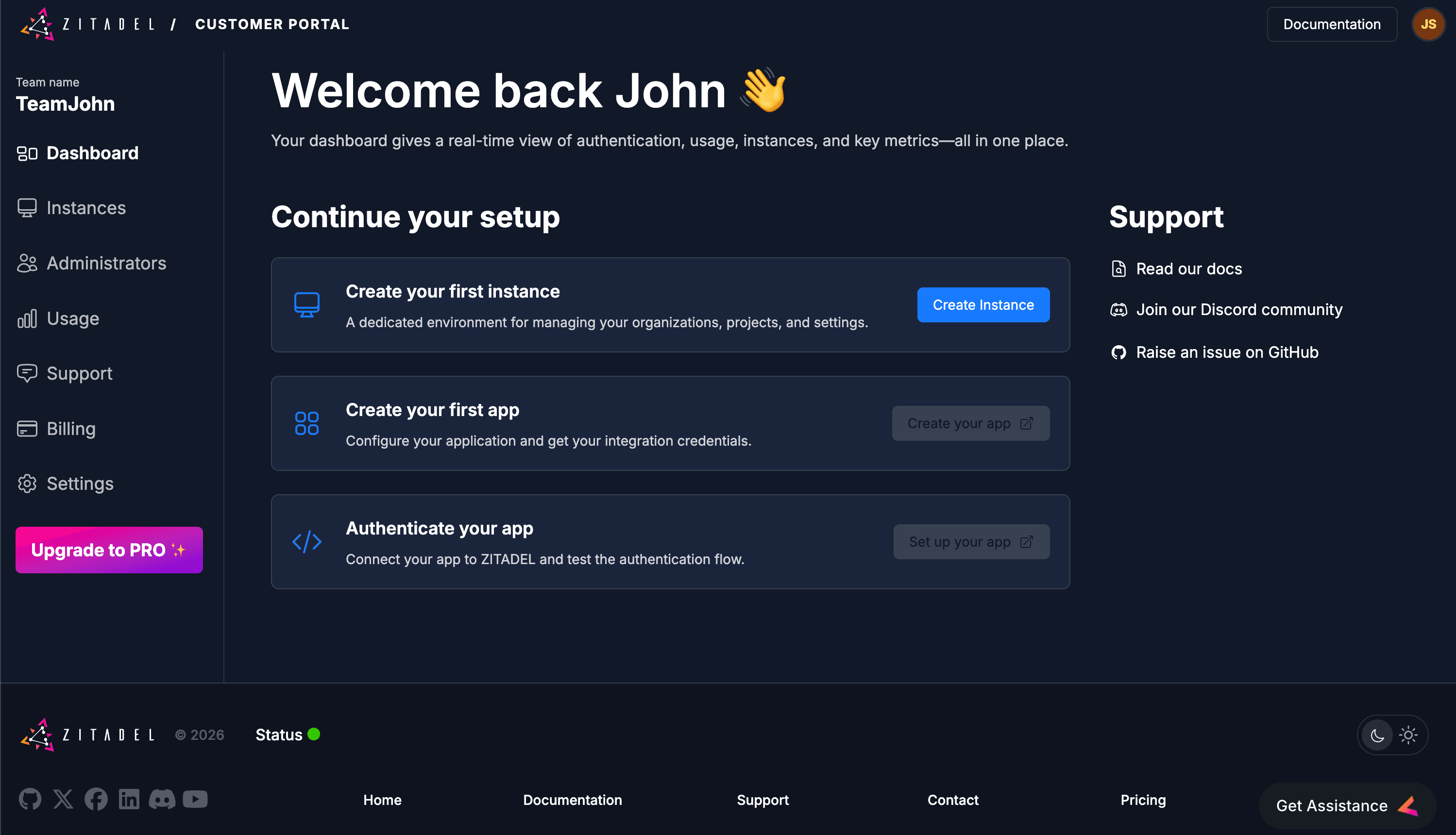
4. Create your Project and Application
In ZITADEL, Applications are grouped into Projects. This allows multiple apps (like a React frontend and a Go backend) to share the same roles and authorizations.
Launch the Management Console
Click Create your app. This opens the Management Console for your instance in a new tab.
Log in using the Admin credentials you just created.
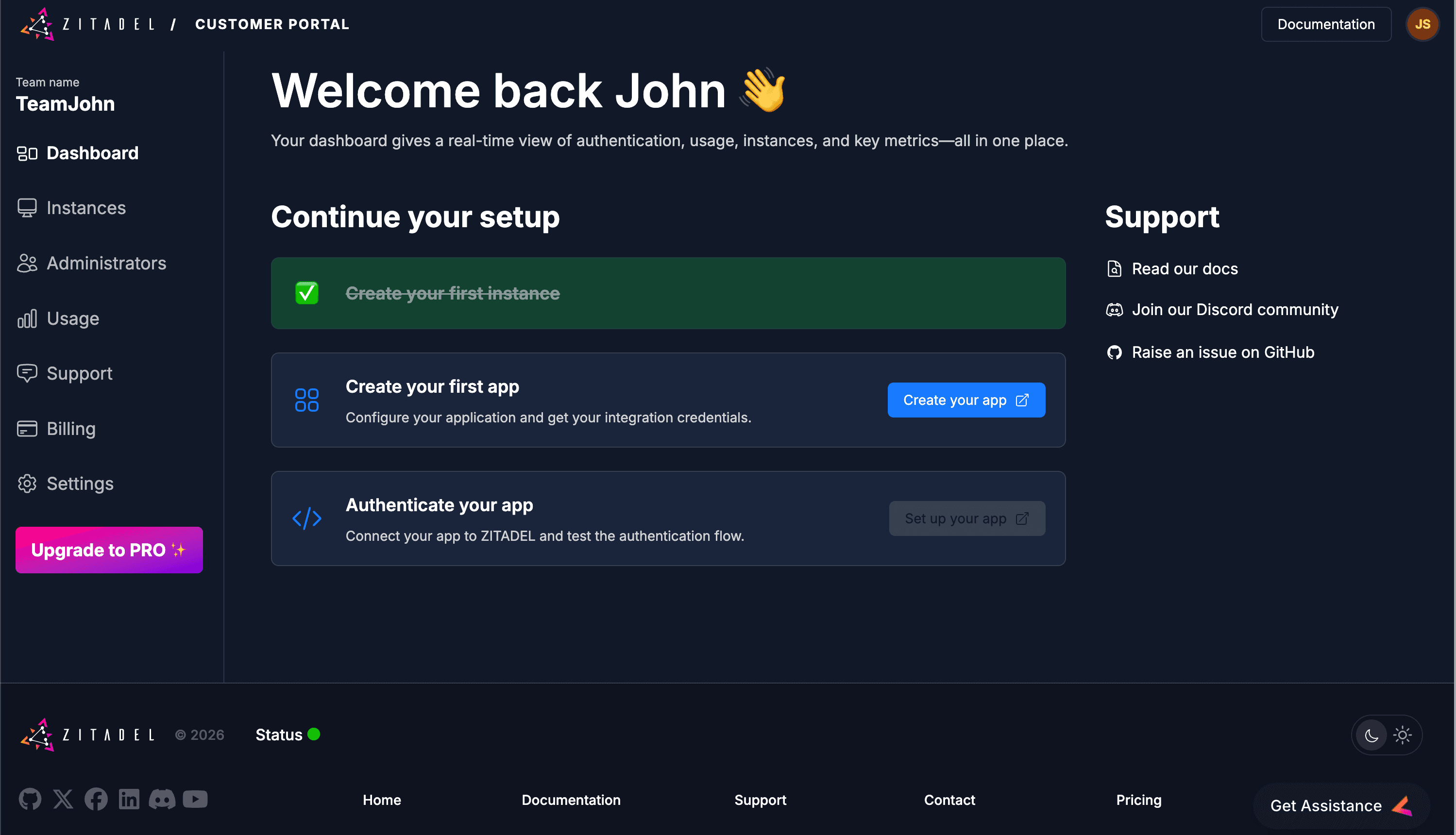
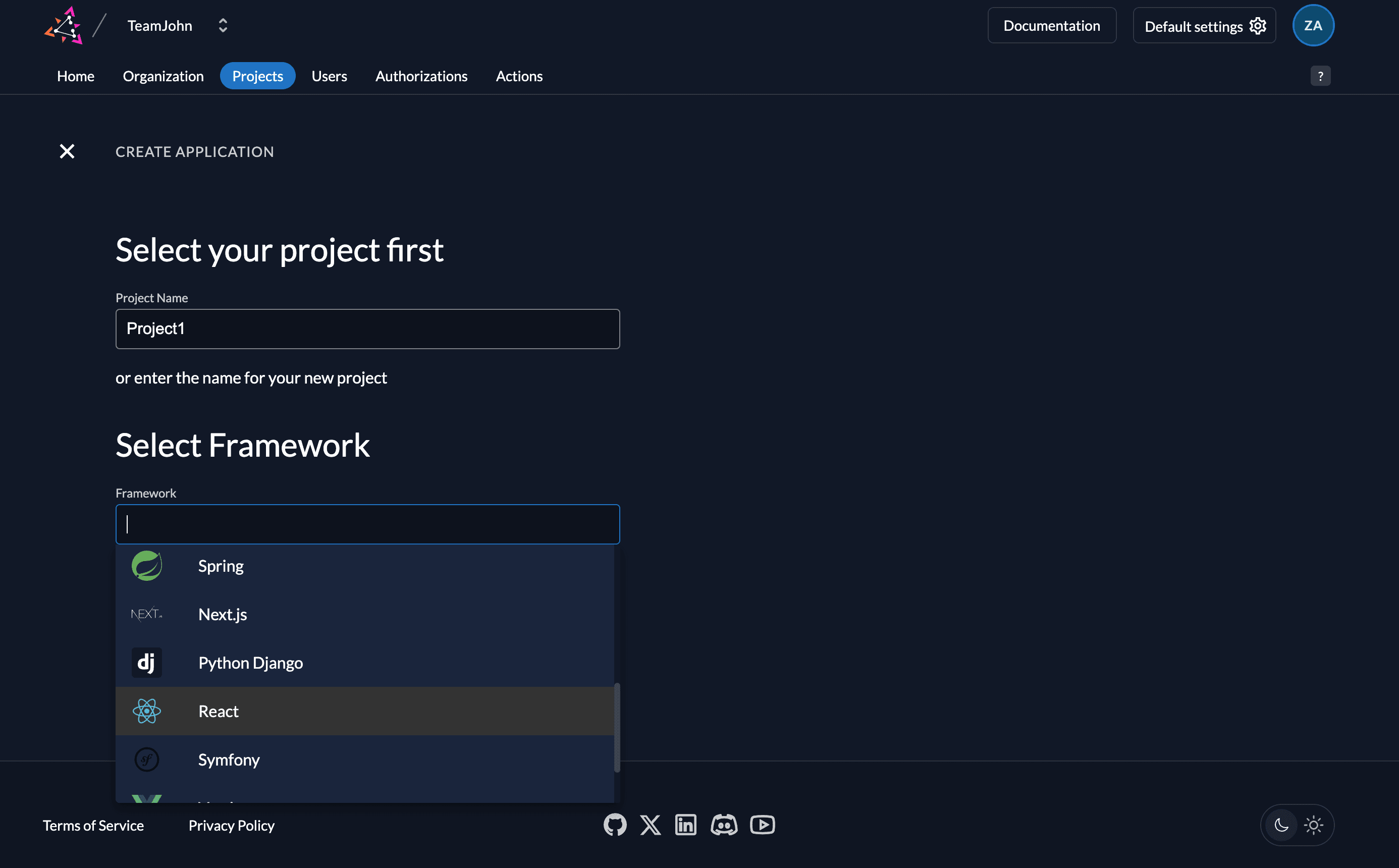
Step 1: Define your Project
- Name: Enter a name (e.g., Project1).
- Framework: Select React (or choose Other if your stack isn't listed).
- Continue: Click the Continue button.
Step 2: Review Default Configuration
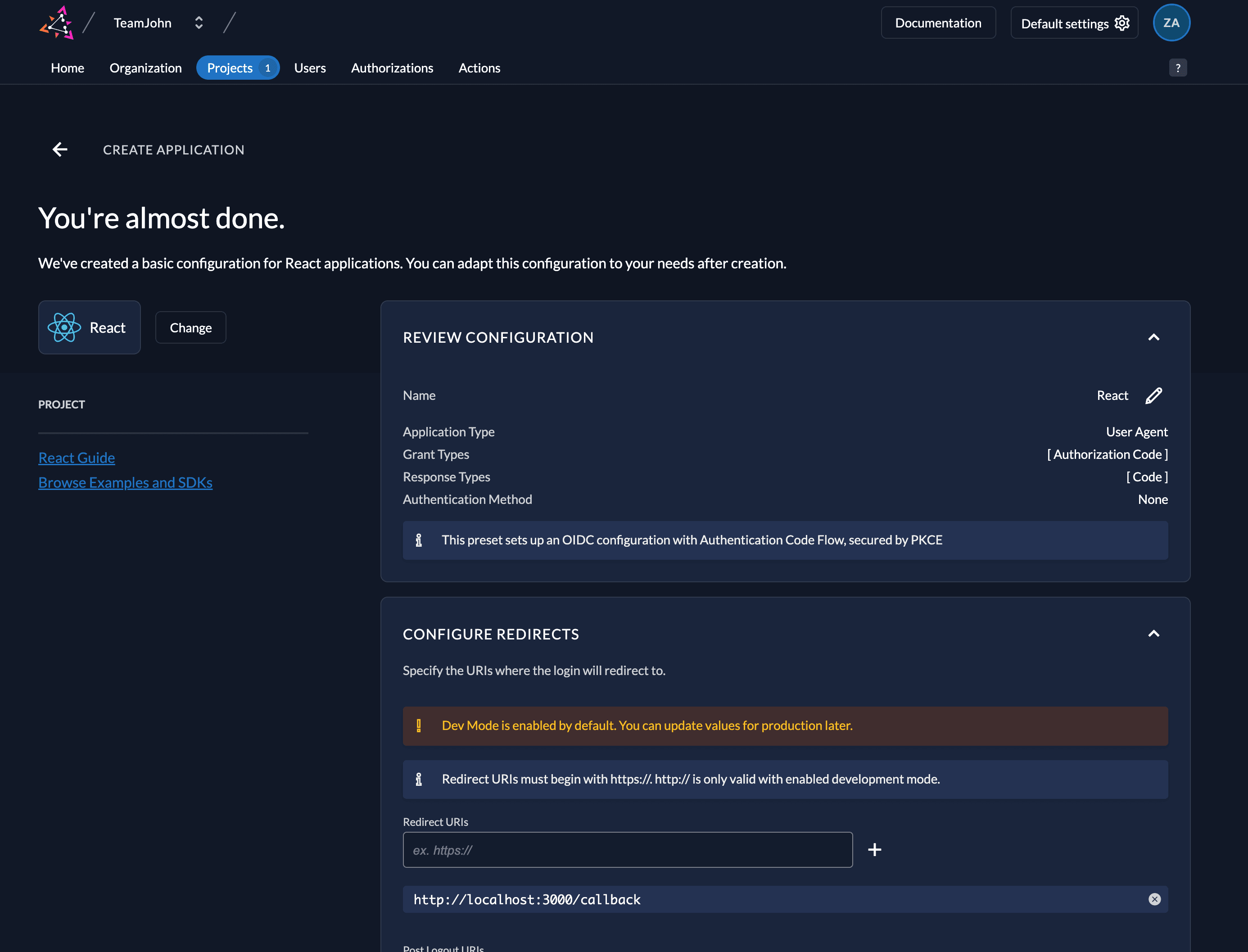
ZITADEL automatically configures the best security settings for your selected framework.
- Auth Strategy: Authorization Code Flow with PKCE. This modern standard ensures tokens are exchanged securely without needing a client secret in your frontend.
- Redirect URIs: These define where users return after authentication:
- Redirect URI: http://localhost:3000/callback (Landing page after login)
- Post Logout URI: http://localhost:3000/ (Landing page after logout)
5. Collect your Integration Keys
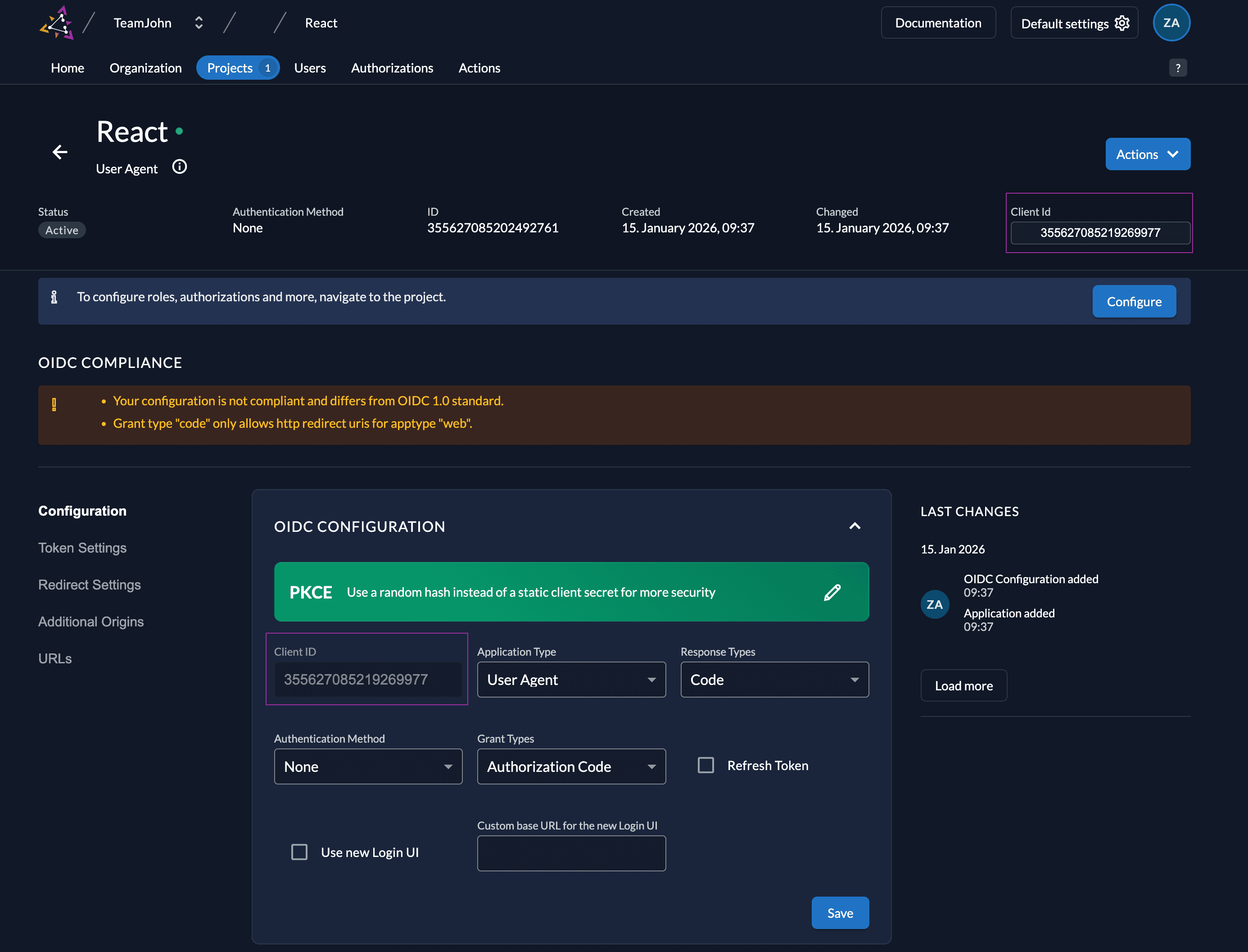
To connect your React application to ZITADEL, you need two primary configuration values. These are typically stored as environment variables in your project.
- Client ID Navigate to Configurations in the left sidebar. This is the unique public identifier for your React application.
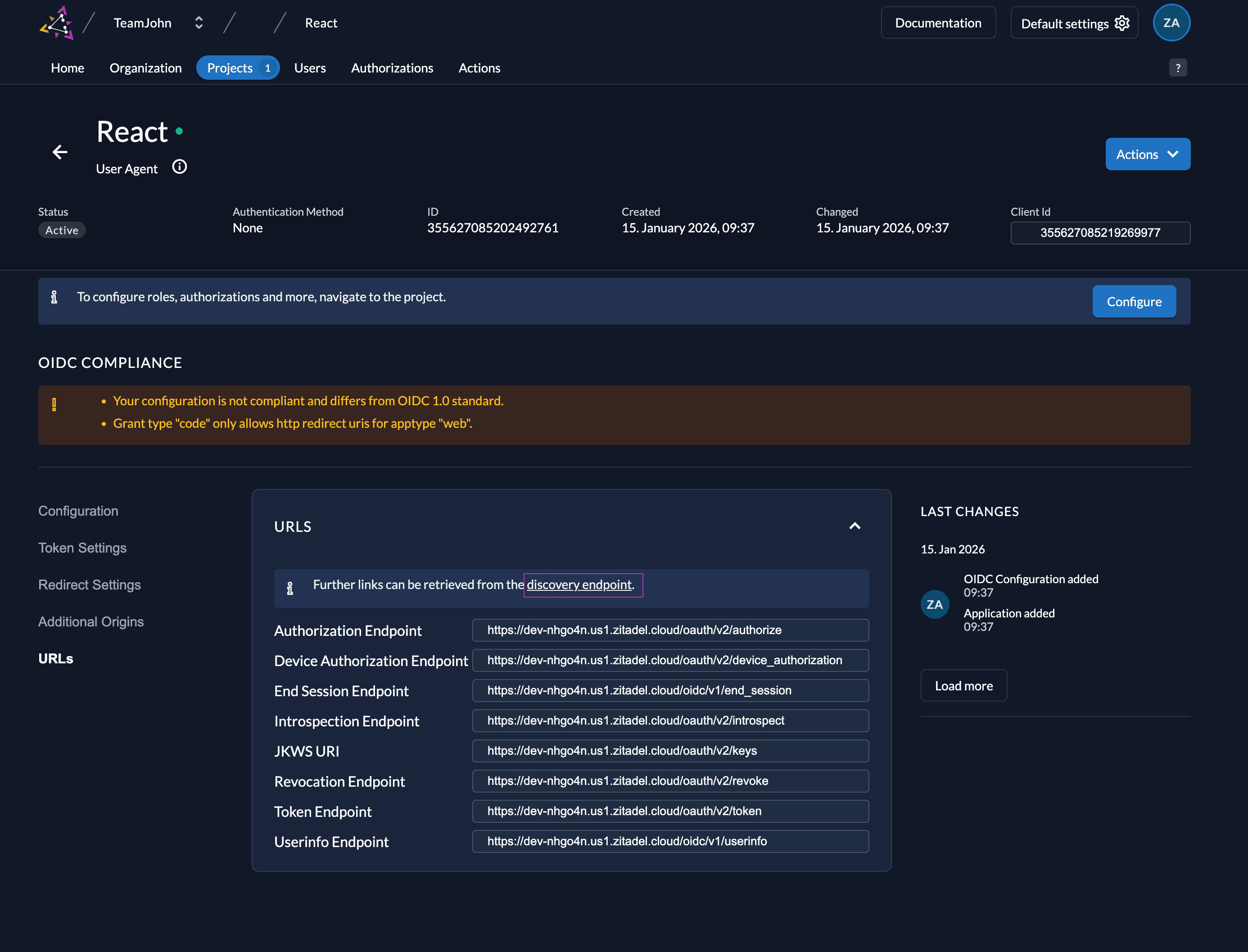
- Issuer URL Click on URLs in the left sidebar to find your Discovery Endpoint.
- The Value: Copy the issuer URL (e.g., https://your-instance.zitadel.cloud).
- Why it matters: ZITADEL supports OIDC Discovery. By providing just the Issuer URL to your SDK, the library automatically finds the login, logout, and token endpoints for you.
Integrate ZITADEL into your React App
How the Authentication Flow Works
ZITADEL handles the complexity of the OIDC handshake so your app stays secure without manual token management.
- Login: App redirects the user to ZITADEL with a PKCE challenge.
- Auth: User authenticates on the ZITADEL hosted login page.
- Exchange: ZITADEL returns an Auth Code, which the app exchanges for an Access Token.
- Tokens: The app shows the Access and ID Token
- Logout: The app clears local tokens and terminates the ZITADEL session.
1. Prerequisites
- Node.js: v16 or later.
- Code Editor: VS Code or similar
- Yarn: This project uses Yarn for dependency management.
2. Get the Example Project
Clone the repository and move into the project directory:
git clone https://github.com/zitadel/zitadel-react.git
cd zitadel-react```

### 3. Build and Install

Since this repo contains the SDK source, you need to build the library before running the example:
```bash
# Build the SDK library
cd lib && yarn install && yarn build

# Install example app dependencies
cd .. && yarn install```

### 4. Configure your Credentials

Open src/App.tsx and update the config object with the **Issuer** and **Client ID** you collected in Step 5.

```typescript
const config: ZitadelConfig = {
    authority: "https://your-instance.zitadel.cloud", // Your Issuer URL
    client_id: "YOUR_CLIENT_ID",                      // Your Client ID
    redirect_uri: "http://localhost:3000/callback",
    post_logout_redirect_uri: "http://localhost:3000",
    response_type: 'code',
    scope: 'openid profile email'
};
5. Run the Application
Start your development server:
yarn startYour app will be live at http://localhost:3000. Click Login to test the full PKCE flow!
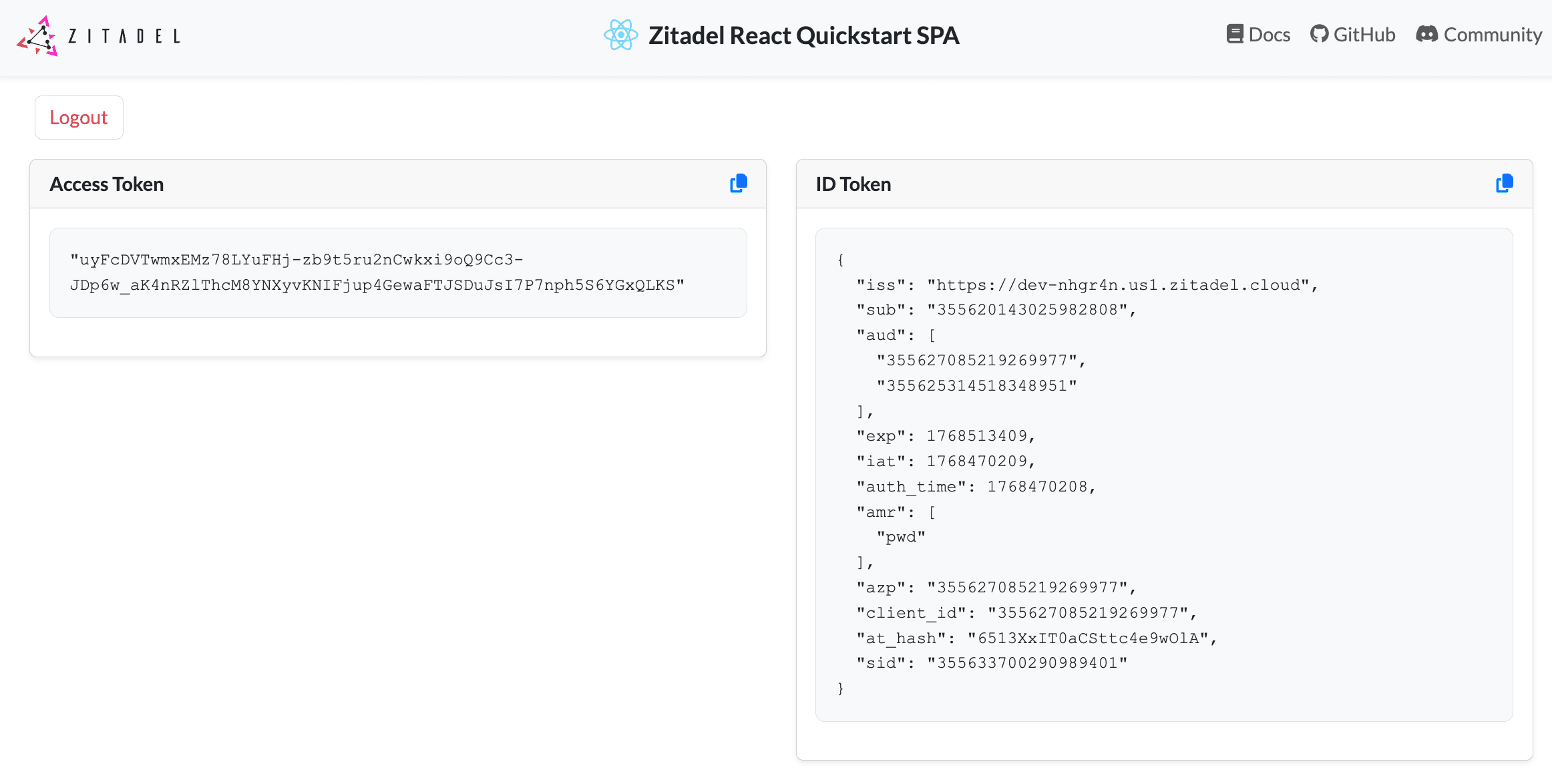
Success! 🚀
You’ve successfully integrated ZITADEL into a React application.
What’s next?
- SSO: Learn how to add SSO to your services
- Customize the UI: Make the login page your own with Branding.
- Explore the API: Check out the ZITADEL API Reference for advanced integrations.
Need help? Join our Discord community or explore the full Documentation. Happy coding!
Was this page helpful?